
Headings
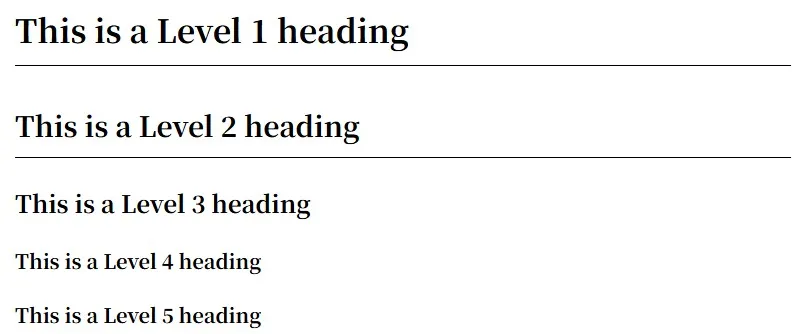
Typically, use 1-6 hash symbols # to denote headings, for example:
# This is a Level 1 heading
## This is a Level 2 heading
### This is a Level 3 heading
#### This is a Level 4 heading
#### This is a Level 5 heading
Displayed as:
Paragraphs
Paragraph
Separate paragraphs with blank lines. Do not use spaces or indentation before paragraphs.
This is the first paragraph
This is the second paragraph
Line Breaks
Add two or more spaces at the end of a line to force a line break.
This is the first lineThis is the second lineEmphasis
Bold
Enclose words or phrases with two asterisks ** or underscores __ to make them bold.
I like **listening to music**, **traveling**...Displays as:
I like listening to music, traveling…
Italics
Enclose words or phrases with one asterisk * or underscore _ for italics.
I like *listening to music*, _traveling_...Displays as:
I like listening to music, traveling…
Bold and Italic
Enclose words or phrases with three asterisks *** or three underscores ___ to apply both bold and italic formatting.
I love **_listening to music_**, **_traveling_**...Displayed as:
I love listening to music, traveling…
Block Quotes
Block Quotes
Precede words or phrases with a right arrow > to create block quotes, ensuring they are separated by spaces.
> What you dwell on will echo back!Displays as:
What you dwell on will echo back!
Nested Block Quotes
Precede paragraphs with double right arrows >> to create nested quotes.
> What you dwell on>> > will resonateDisplays as:
What you dwell on
will resonate
Code
Code
Enclose words or phrases with backticks ` to denote code.
In C++, use `cout` to print Hello World!Displays as:
In C++, use cout to print Hello World!
Code Blocks
Enclose code blocks with three backticks (“) or three tilde symbols (~~~) on both sides, and specify the language type after the first line for syntax highlighting.
```c++#include <iostream>using namespace std;
int main() {  cout<<“Hello World!”<<endl;  return 0;}```
Result as shown below
#include <iostream>using namespace std;
int main() {  cout<<“Hello World!”<<endl;  return 0;}
Enhanced Code Blocks (Expressive Code)
Syntax highlighting is powered by Expressive Code. Add options after the language:
title="path/to/file"shows a title bar;frame="terminal"renders a terminal window{2,4-5}highlights lines;ins={2}/del={1}add diff markersshowLineNumbers/startLineNumber=10show line numberscollapse={3-10}collapses lines;wrapwraps long lines;frame="none"hides the frame
```js title="src/app.js" {3} ins={4} del={5} showLineNumbersfunction greet(name) { // highlighted line 3 console.log(`Hello, ${name}!`) return true // added return false // removed}```Result:
function greet(name) { // highlighted line 3 console.log(`Hello, ${name}!`) return true // added return false // removed}Terminal frame with a collapsible section:
```bash frame="terminal" collapse={3-6}pnpm installpnpm build# collapsed content belowecho "hello"echo "world"echo "again"echo "more"```pnpm installpnpm build4 collapsed lines
# collapsed content belowecho "hello"echo "world"echo "again"echo "more"Lists
Ordered Lists
Precede paragraphs with a number followed by a period . to create an ordered list. Numbers don’t need to be sequential, but the list will display with numbers at the beginning.
1. First item1. Second item1. Third itemDisplayed as:
- First item
- Second item
- Third item
Unordered Lists
Precede a paragraph with an asterisk *, hyphen -, or period . to create an unordered list.
- First item
* Second item  . Third item
Displays as:
- First item
- Second item
- Third item
Nesting List Items
To nest another element (paragraph, blockquote, etc.) within a list item, indent it by four spaces or one tab.
1. First item > Early to bed, early to rise2. Second itemDisplays as:
- First item
Early to bed, early to rise
- Second item
Links
Linking
Enclose text in square brackets (e.g., [Motues]), then add the URL in parentheses to create a link.
Welcome to Motues' [Blog](https://motues.top)!Displays as:
Welcome to Motues’ Blog!
Link Titles
Add a title in the brackets after the URL. This will display as a tooltip when users hover over the link.
Welcome to Motues' [Blog](https://motues.top “Motues' Blog”)!Displayed as:
Welcome to Motues’ [Blog](https://motues.top “Motues’ Blog”)!
Opening in a New Tab
Links open in the current tab by default. Write {target="_blank"} immediately after a link to open it in a new tab; a small arrow icon is appended to the link text.
Welcome to Motues' [Blog](https://motues.top){target="_blank"}!Displayed as:
Welcome to Motues’ Blog!
Images
Start with an exclamation mark (!), then add alternative text in parentheses. Include the image resource path or URL within the parentheses. Optionally, add a title after the URL in the parentheses.The title will be displayed below the image.
Displayed as:

Tables
Table
To add a table, use three or more hyphens (---) to create each column header, and separate columns with vertical bars (|) (rows and columns do not need to be aligned).
| Fruit | Color | Taste || ------ | ---- | ---- || Watermelon🍉 | Green | Sweet || Grapes🍇 | Purple | Tart |Displayed as:
| Fruit | Color | Taste |
|---|---|---|
| Watermelon🍉 | Green | Sweet |
| Grapes🍇 | Purple | Tart |
Alignment
You can align text within a column to the left, right, or center by adding a colon : to the left, right, or both sides of the hyphen in the header row.
| Fruit | Color | Taste || :----- | :--: | ---: || Watermelon🍉 | Green | Sweet || Grapes🍇 | Purple | Tart |Displayed as:
| Fruit | Color | Taste |
|---|---|---|
| Watermelon🍉 | Green | Sweet |
| Grapes🍇 | Purple | Tart |
Escape Characters
Use the HTML character code | to display the vertical bar | character in tables.
Task Lists
Precede each task item with a hyphen - and square brackets [], inserting a space between them. To mark a task as completed, add an x inside the brackets.
- [x] Eat- [ ] Sleep- [ ] Play Beans- Eat
- Sleep
- Play Beans
Other Features
Strikethrough
Enclose words or phrases with two tildes ~~ to create a strikethrough.
I don't like eating ~~grapes~~Displays as:
I don’t like eating grapes
Horizontal Lines
Use three or more asterisks (***), hyphens (---), or underscores (___) on a line to create a horizontal line.
------
---
Displays as:
Loading comments...